This is only for people who have a reasonable familiarity with computers.
This procedure is illustrated with screens from a Windows PC.
Overview
- Copy the files from your USB stick and paste them to a new folder on your computer.
- Format your BillionDollarArtGallery with NTFS format.
- Copy the files back from your computer to your USB stick.
- Eject the stick. (Pulling the stick out without ejecting may lose the files.)
1. Copy the files from your USB stick and paste them to a new folder on your computer.
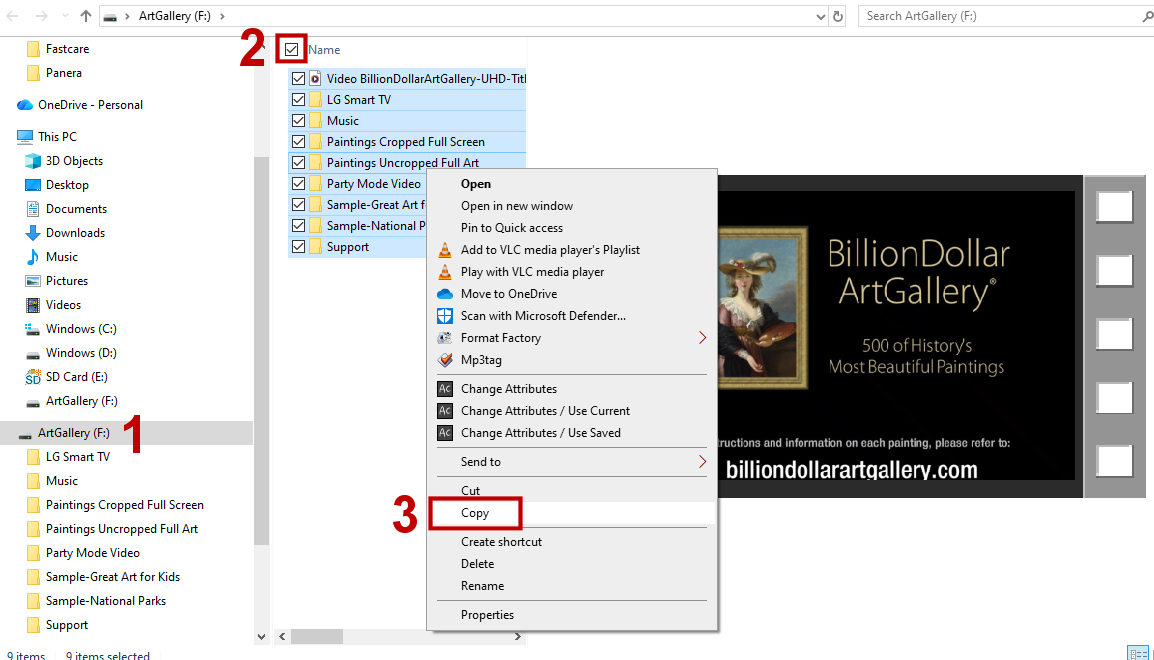
1. Insert the stick into your computer. In the Windows File Manager, click on ArtGallery on your stick
2. Check the the box in the file list to select all the files
3. Right-click on the list and choose Copy.
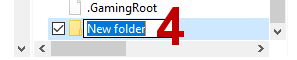
4. On your computer's main drive -- usually C: -- make a directory called \ArtGallery
Click on the C: drive (1), then New (2) then the new folder (3) and then you can rename the new folder. It does not really matter what you name the folder as long as you remember the name so you can find the files later.

5. Click on that directory, right-click and choose Paste. This may take 15 minutes or more because there are many files.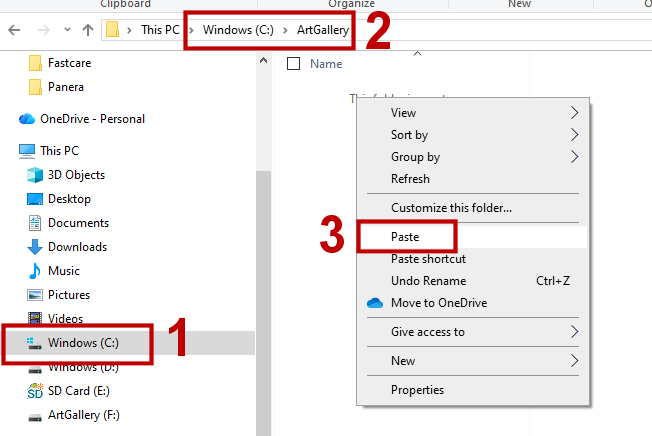
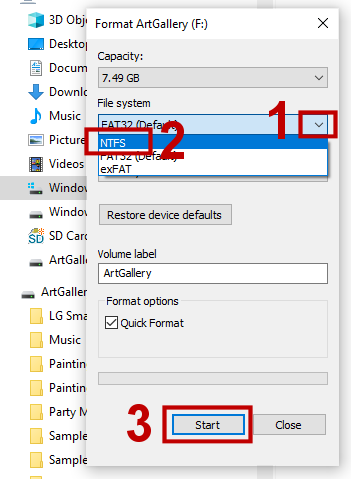
2. Format your BillionDollarArtGallery with NTFS format.
Go back to your USB stick in your File Manager. It should have a drive letter like F: or G: DO NOT FORMAT YOUR HARD DRIVE!!!! -- USUALLY C: OR G:
Right-click on your stick (1) and choose Format (2)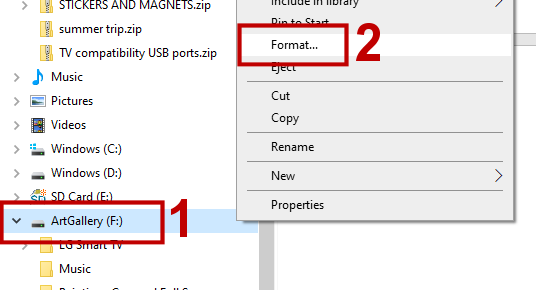
Select the down arrow and choose NTFS. This is the format required for many Samsung TVs.
Tap Start. This should take a few seconds to a few minutes to complete.
3. Copy the files back from your computer to your USB stick.
Your USB stick is now formatted for NTFS and is blank. Follow the same copy-and-paste technique in step 1 to copy the files from your C: drive to your USB memory stick.
4. Eject the stick.
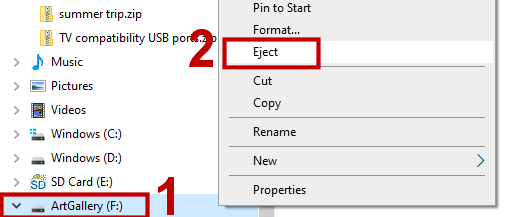
Right-click on your memory stick (1) and choose Eject (2) The stick disappears from the File Manager and you may now safely pull it from the USB slot.
Was this article helpful?
That’s Great!
Thank you for your feedback
Sorry! We couldn't be helpful
Thank you for your feedback
Feedback sent
We appreciate your effort and will try to fix the article