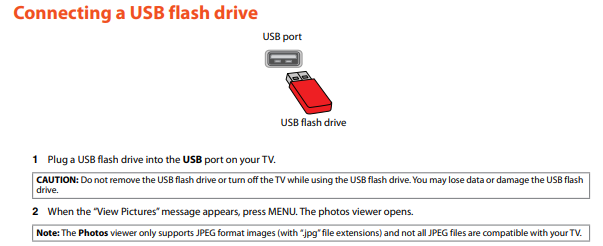
Page 16 of the user's manual (attached at the bottom of this FAQ) notes that this TV only supports JPG files - that is, images and not videos. However, you can view the paintings by following this procedure:
This is a Fire TV, so you need to install a media player that can browse USB and show images. We recommend the VLC Media Player. Info here: https://www.videolan.org/
Step‑by‑step setup
- Connect USB to Fire TV
- Plug the USB drive directly into the port.
- Install a viewer app
- On the Fire TV home screen, go to Find → Search.
- Search for and install VLC for Fire
- On the Fire TV home screen, go to Find → Search.
- Browse and display your images
- Open the VLC app you installed
- In VLC: go to the Browsing or Storage section, select the USB drive, then navigate into your photo folders and open an image.
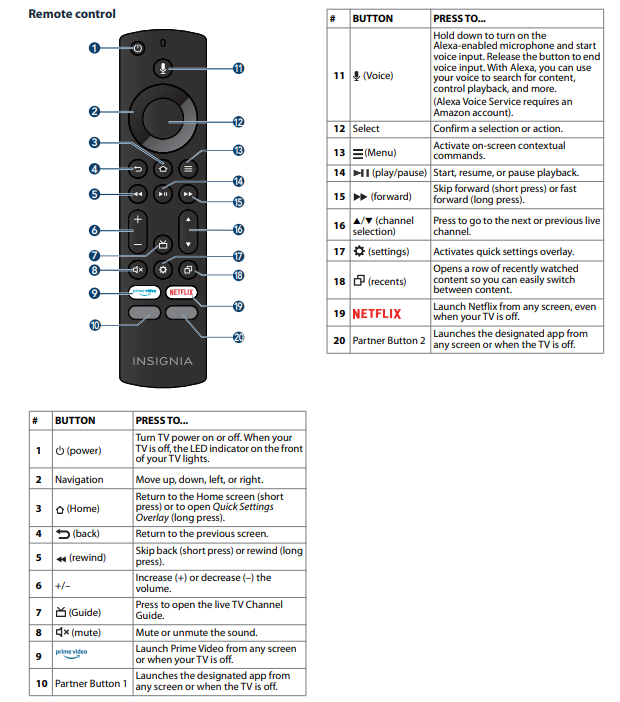
- Use left/right on the remote to move through the images; many apps can also start a slideshow from the folder.
Using the built‑in Media Player (on some Fire TVs)
On Insignia Fire TV‑based televisions:
- Press Home, go to Inputs → Media Player.
- Select the USB drive; you’ll see categories like Pictures, Videos, Music.
- Open Pictures, pick a folder, and view images or start a slideshow.
If you want a nicer slideshow
If you mainly want a continuous slideshow (e.g., like a digital photo frame), consider a dedicated slideshow/gallery app from the Amazon Appstore that supports USB or local storage; these are often marketed for Fire TV photo slideshows.
Was this article helpful?
That’s Great!
Thank you for your feedback
Sorry! We couldn't be helpful
Thank you for your feedback
Feedback sent
We appreciate your effort and will try to fix the article