Download the manual here of at the bottom of this page:
https://downloadcenter.samsung.com/content/EM/202212/20221205095246605/49.43T19.003_UN43N5300AFXZC_user_manual_AUO.pdf
This TV was manufactured in 2018.
The download manual does not mention whether the USB supports FAT32 or NTFS. The most reliable answer for your specific set is in the TV’s on‑screen “Notes and Instructions” section under Support → e‑Manual or in the USB/media section of the manual for model UN43N5300AF/UN43N5300AFXZC The main BillionDollarArtGallery product is a FAT32 stick; newer Samsung TVs require NTFS.
The USB port is the second port down: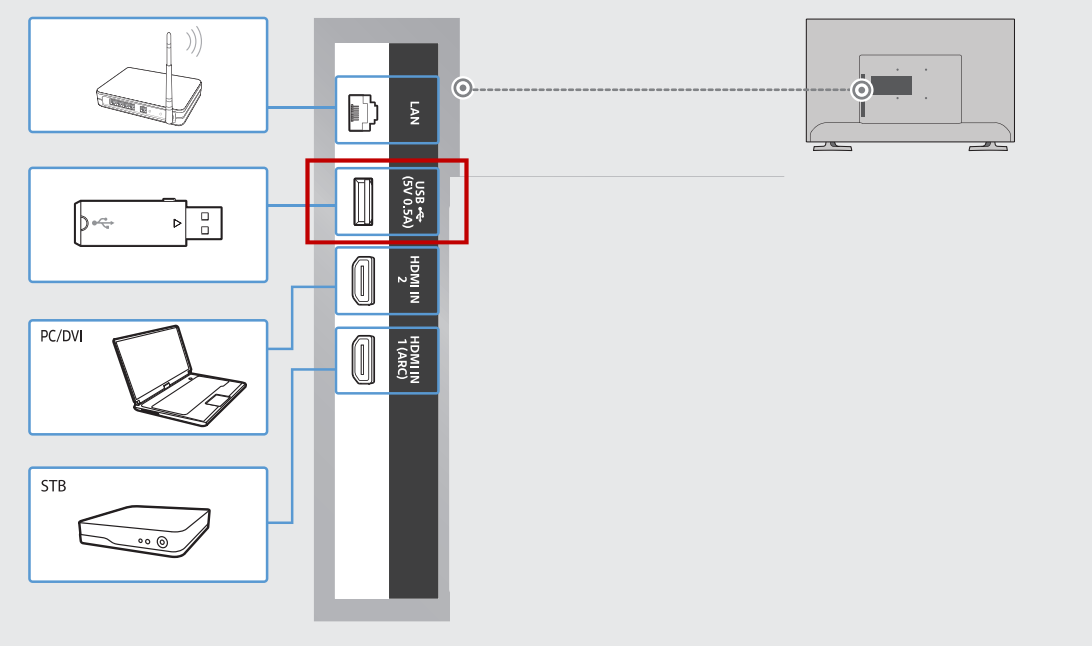
Use ONLY the Samsung Remote control. DO NOT use the cable remote because cable companies do not support playing any other media.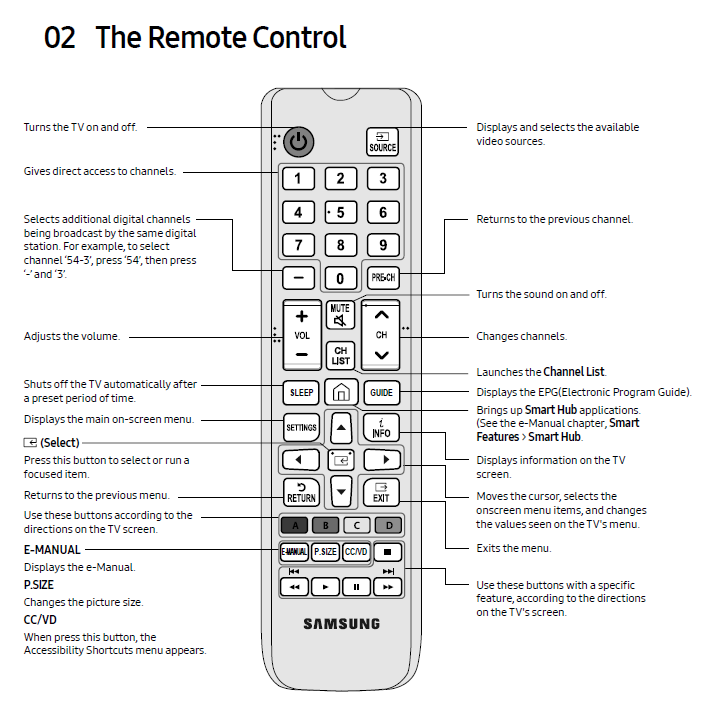
The Source button in the upper right should display available video sources. Choose the USB port.
- Plug in the USB: Insert your USB drive into any USB port on the back of your Samsung TV.
- Access the Source Menu:
- Press the Source button on your remote.
- Alternatively, press the Home button and navigate to the Source icon.
- Select USB: From the source list, select the option labeled USB Device or U-Disk.
- Browse & Play:
- Your TV will display the files on the USB drive (videos, music, pictures).
- Use the arrow buttons on your remote to find the file you want.
- Press the Enter button (the center of the arrow pad) to start playing the media.
- Return to List: Press the Return button to go back to the file list and select something else.
- If it doesn't open automatically: Use the Source menu as described above.
- File Compatibility: Ensure your media files are in common formats like MP4 (H.264) for video, as some high-bitrate or specific codecs might not play.
- File System: Samsung TVs usually support FAT32, exFAT, and NTFS formats.
Was this article helpful?
That’s Great!
Thank you for your feedback
Sorry! We couldn't be helpful
Thank you for your feedback
Feedback sent
We appreciate your effort and will try to fix the article