Step-by-Step Instructions for the Samsung QN55Q70AAFXZA QLED TV and the BillionDollarArtGallery
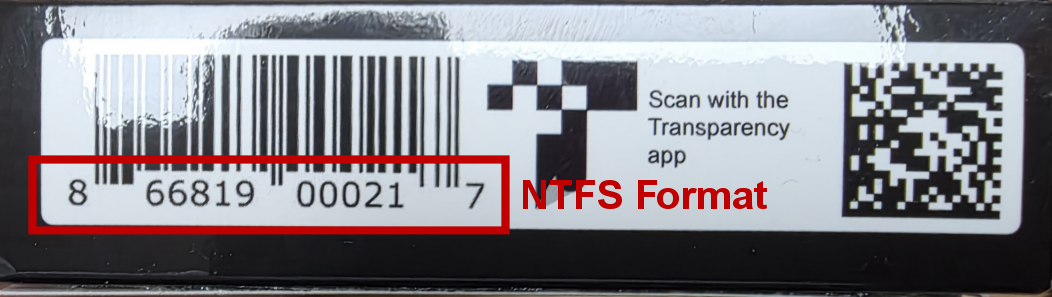
1. You must have the version of the BillionDollarArtGallery that is formatted for NTFS (not FAT32).
The Samsung QLED requires an NTFS format. The UPC code on the package for the NTFS version ends in a 7:
If you have the wrong format for your TV, please click here for a new version
2. Insert the stick into the TV's USB port.
More info here on your USB port
3. You must use the TV remote -- NOT the cable remote supplied by the cable company.
Your cable company only supports streaming on your TV, so its remote control does not support the USB port.
What if you have no remote control for your Samsung TV? The good news is that replacement remote controls are available on Amazon and other suppliers for about $14. See:
Here is a photo of the Samsung Smart Remote from the TV's manual:
The support site for this TV is: https://www.samsung.com/ca/support/model/QN55Q70AAFXZC/
4. When you insert the USB, a pop-up message appears on the screen. Select Browse to move to the list of multimedia content stored on the device.
If the BillionDollarArtGallery is already connected to the TV, select the USB device in the Source screen.
The "Home" button leads to the Source screen
The "Home" button leads to the Source screen
Select a content item to play from the list. We recommend starting with the Video in the main directory that plays all 500 paintings with captions and music. If you prefer not to hear the music, press the MUTE button or turn the sound all the way down.
The Samsung QN55Q70AAFXZA TV manual shows how to play pictures and video from the USB port on
page 77:
page 77:
Was this article helpful?
That’s Great!
Thank you for your feedback
Sorry! We couldn't be helpful
Thank you for your feedback
Feedback sent
We appreciate your effort and will try to fix the article